LION
4-scale weighing indicator
Used for precise weighing and fast dosing in 4-scale concrete batching plants.
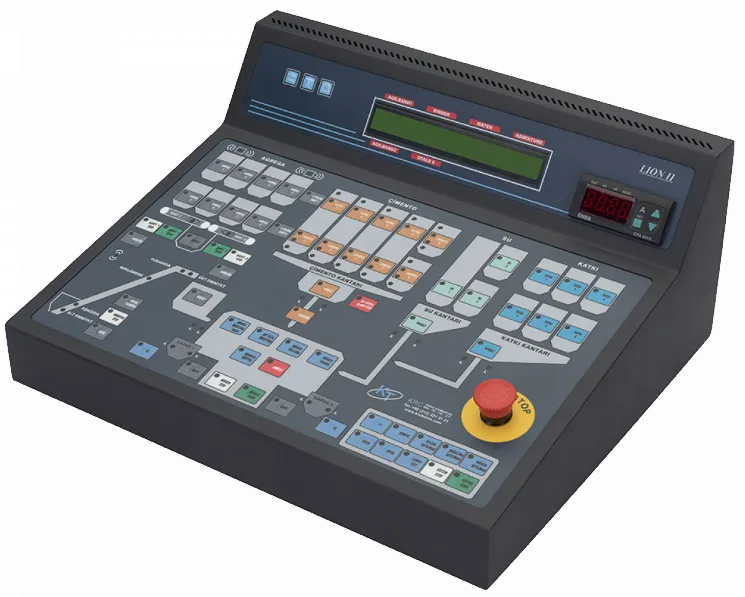
Drag to rotate; pinch or use the mouse wheel to zoom; double-tap resets the view. On the keyboard, arrow keys rotate, + and − zoom, 0 resets.
- scale connections
- 4
- serial ports: PC and PLC
- 2
- supply, 60 W
- 220 V AC
- mm, console size
- 425 × 355 × 190
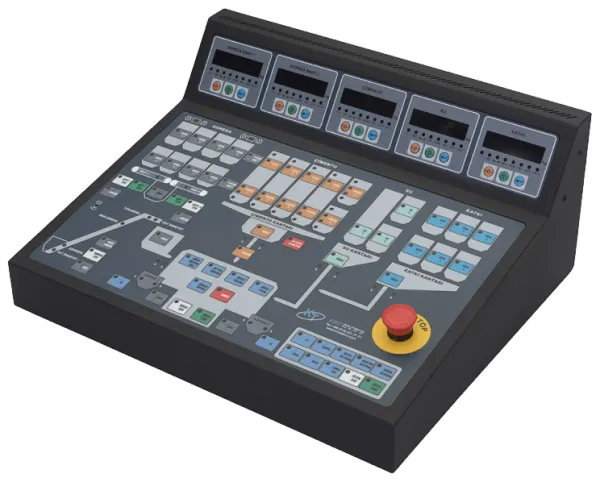
LION offers the same console design as EAGLE for 4-scale plants. Aggregate, cement, water and admixture scales are connected at the same time, weighing with load cells or pulse-meter liquid counters.
It runs in sync with the production software; if the computer fails, the plant can be operated manually from the mimic panel. The version with a built-in computer is called LION-KRPC.
Technical specifications
Weighing
- Scale connections
- 4: aggregate, cement, water, admixture
- Weighing type
- Load cell or pulse-meter liquid counter
- Moisture meter
- 3
- Filling outputs
- Fast and fine filling for each scale
Communication
- Serial 1
- PC communication
- Serial 2
- PLC communication
Electrical
- Supply
- 220 V AC (60 W); KRPC model 220 V AC (150 W)
- I/O
- 24 V DC, externally supplied, max. 1 A
Mechanical and environment
- Housing
- DKP steel, black or white textured paint
- Dimensions
- 425 × 355 × 190 mm
- Weight
- 8.2 kg (KRPC: 9 kg)
Options
- Built-in computer
- In KRPC models
- Analogue input card
- 1 card, 3 channels, 4-20 mA / 0-10 V (moisture meter and ammeter)
Operation
- Manual control
- Mimic panel: emergency stop, system start, auto / manual selection for mixer, filling and discharge
Source: LION User Manual (Turkish, 2012)
Troubleshooting LION
Troubleshooting steps from the manual. Pick the problem to see the steps.
Full troubleshooting guideThe indicator does not turn onEAGLELION
Steps to solve it
- Check the power cable.
- Check the uninterruptible power supply (UPS).
Windows shows a startup error (KRPC models with built-in computer)EAGLELION
Possible cause
Cutting the power suddenly can cause data loss and hardware failures.
Steps to solve it
- If Windows shows an error while starting, use Startup Repair.
Note KRPC models contain a computer, so the power must not be cut suddenly when shutting down. Use Start > Shut down in Windows, or press the ON button on the rear panel of the indicator once, briefly.
The weight on the indicator display keeps going negativeEAGLELION
Possible cause
One or more load cells of the scale are faulty.
Steps to solve it
- Contact technical support to locate the faulty load cell.
Note The health test of the connected load cell can be done in the IC SAYAÇ (internal counter) menu of the indicator. On LION this screen should read a value between 0 and 167772.
Source: EAGLE user manual (Turkish), p. 24 (opens in a new tab); LION user manual (Turkish), p. 31 (opens in a new tab); Calibration procedure (EAGLE-KRPC, BetonicTCP, Turkish), p. 16 (opens in a new tab); EAGLE user manual (Turkish), p. 16 (opens in a new tab); LION user manual (Turkish), p. 21 (opens in a new tab)
Not solved?Open a service request
The indicator display goes darkEAGLELION
Possible cause
The scale capacity is lower than the weight placed on it.
Steps to solve it
- Change the capacity of that scale in the Betosistem software.
- Since the capacity has changed, repeat the calibration.
Stock shortfalls keep appearingEAGLELIONBetonicTCP
Steps to solve it
- Check the scale calibrations at least once a month.
- Before calibrating, clean around the scale and the canvas under the discharge gates.
- Make sure the scale hangs level by keeping the metal rods (studs) that connect the load cells to the scale at equal lengths.
- If the shortfall continues, place a 50 kg weight on each corner where a load cell is attached, one at a time. The indicator must show the same value at every corner.
- If any corner differs by even (+/-) 1 kg, check the load cell at that corner.
- If there is no calibration error, check the manual productions and material intakes in BetonicTCP under Program settings > Manuals.
- If the shortfall still continues, call service for technical support.
The software and the indicator do not communicate (the serial port indicator in the bottom right corner is not spinning)EAGLELIONBetonicTCP
Possible cause
If the serial port status indicator in the bottom right corner of the software is not spinning, there is a communication problem.
Steps to solve it
- Check the serial port settings in the software.
- In Device Manager > Mice and other pointing devices, if there is a device named "Microsoft Serial Ballpoint", turn it off with "Disable".
- If the problem persists, call an authorised service.
Indicator weights do not appear in the software (after first installation)EAGLELIONBetonicTCP
Possible cause
The plant parameters have not been sent.
Steps to solve it
- Send all parameters in order from Files > M3 > Plant settings.
The scale gates always appear open in the softwareEAGLELION
Steps to solve it
- Make sure cable no. 900 is plugged into the Serial 2 connector.
- Check the power supply of the PLC.
- If the gates appear open and you also cannot see the scale weights on the screen, call service.
Request a quote for this product.
Tell us briefly about your plant or weighbridge and we will reply with a suitable configuration.
- Head office+90 212 321 31 21
- Emailinfo@teknotomasyon.com
- AddressMerkez Mah. Alibey Cad. 12A
Kağıthane / İstanbul
Directions - DealersFind a dealer near you